Fixing Curl Error 35 with WordPress API calls

I recently had an issue where a WordPress website I was building could not connect to itself for wp-cron or background tasks.

This was the error:

curl: (35) error:1408F10B:SSL routines:ssl3_get_record:wrong version number

It turns out I had a faulty nginx configuation, and the server block was missing the ssl directive. The certificates worked in both Chrome and Firefox without warnings, but they weren’t doing what the needed to for curl to work.

server {
	listen 443 ssl;
	server_name www.example.com;
	
	root /var/www/example/;
}

Adding ssl to the listen line fixed the cURL error and wp-cron

Confirm Before Deleting WordPress Trash

I recently watched someone who using their phone and tablet for everything manage posts on their WordPress blog. One they intended to keep ended up in the Trash by mistake. Restoring it is easy enough, but the ‘Restore’ and ‘Delete Permanently’ links are very close to each other on a mobile screen and I got a little nervous seeing them tap restore 30px away from the kill button.

I’ve created a simple WordPress plugin that adds a confirmation step in the admin area before deleting or emptying the Trash.

It’s a pretty simple thing, just a little JavaScript to make sure the click was deliberate. Give it a go if you’d rather have an extra click than possibly try and recover a post from a site backup.

Download the Plugin

Trash Fail Safe for WordPress.

WordPress 5.0 and the Gutenberg High Drama

Considering how widely used and how widely extended WordPress is, it’s renowned for its backwards compatibility with new releases. The next major WordPress update – v5.0 – is due for release in a couple of days amid a shroud of hot drama over the stability of the new Gutenberg editor.

Gutenberg is a major redesign in the way Pages and Posts can be constructed within WordPress. It brings the concept of custom ‘Blocks’ which allow chunks of information to be presented in specific ways. Conceptually this approach has widespread support, but retrofitting it into the existing WordPress ecosystem is a challenge. The team have put a lot of effort into backwards compatibility, but it’s a complex process and there are widespread doubts about how smoothly that will go.

Knowing this the WordPress development team have been distributing a WordPress Classic Editor plugin to allow sites to keep the old editor with the new version of WordPress.

My advice would be for anyone updating an existing WordPress site is to first install and activate this plugin, and to only use the new Gutenberg editor once they’ve been able to test it on a staging version of their website. Gutenberg may well work fantastically with your theme and plugins, but it’s far from guaranteed and you don’t want to be trying it out in production!


WordPress HTTP Error Uploading Larger Files

Sometimes WordPress shows a mysterious “HTTP Error” after attempting to upload a file. The file appears to upload with the progress sliders moving as normal, but fails at the end of the process without a descriptive error message.

There are a few possible causes of this, but if you have an Nginx server and small uploads are working while larger ones fail the problem might be Nginx’s max body size setting.

Increase Nginx’s client_max_body setting

Go to your Nginx sites-enabled directory (/etc/nginx/sites-enabled on Ubuntu systems) and update your server settings like so:

server {
   # other stuff is here too

   client_max_body_size 20M;
}

Restart Nginx.

Gravity Forms – Collecting Select Box Value

Gravity Forms for WordPress has a select box field type, which by default uses the same data for both value and label. The field can easily be configured to have separate value and label attributes, however only the label will be sent in the form notification. In many cases this is fine, but sometimes you need the <option> value data to be sent as well as the display label.

Alternative Option: Capturing Checkbox Values

Capture the Value Attribute in a Hidden Field

One solution is to use JavaScript to capture the <select> field’s value, and copy it to a hidden form field which can be included in the email notification.

We’ll use a bit of custom JavaScript to listen to the <select> change event and update our hidden form field. This example code uses specific field ids that Gravity Forms generates. You could also write more general JS and selectors to match more scenarios if your site has multiple forms.

The Form Setup

At minimum we’ll need a select input (drop down) and a hidden field. For this demo our hidden field is actually plain text so we can see what’s happening.

Demo Product Form

  • Choose a product...
  • ...we'll grab the select option value here

Here’s the JavaScript. This example matches the IDs in the demo form. You’ll need to change those selectors to suit your form.

/**
* Wrap our JS for capturing values
*/
var selectHandler = {

	// Setup & Event listener
	// ----------------------
	init: function() {
		
		var select = jQuery('#input_3_1')[0]; //change id to match your form
		if(typeof select === 'undefined' || !select) {
			return;
		}
		
		//Set Initial Value (before change)
		selectHandler.setEmail.apply( {value: select.value} );
		
		jQuery(select).on('change', this.setEmail);
	},
	
	// Set text (or hidden) field to option value
	// (change selector to match your form)
	// ------------------------------------
	setEmail: function(ev) {
		 jQuery('#input_3_2')[0].value = this.value;
	}
};
jQuery().ready( selectHandler.init() );

If you are using a child theme or custom theme you can add this code to its JavaScript file.
Otherwise use WordPress’ wp_register_script and wp_enqueue_script functions to load a new file.
The value of the hidden/text box can then be included in your Gravity Forms notification.

WordPress Debugging

Bronson Quick spoke at the WordCamp Sunshine Coast today on debugging for WordPress. He covered techniques for fixing a white-screen of death as well as getting detailed information to sort out squirrelly bugs and performance issues.

Firstly WordPress has a few rad constants you can switch on to get better information about where things are breaking.

define( 'WP_DEBUG', true );     //I was blind, now I can see (my PHP errors)
define( 'WP_DEBUG_LOG', true ); //for production, write logs to wp-content
define( 'SCRIPT_DEBUG', true ); //use non-minified versions of core CSS/JS
define( 'SAVEQUERIES', true );  //log queries, look for suspicious ones. Not for production

Local Development

Develop in an environment close to the production hosting environment your site will be deployed to. The best way to do this is with virtual machines and tools like Vagrant.

Chassis is a WordPress focused VM for Vagrant. It’s configured with Nginx, MySQL, PHP 5.4 – 5.6 and has a bunch of handy extensions available to set up things like Xdebug, Debug Bar and Query Monitor quickly. The disposable nature of VMs means you can create one for each project.

Creating a Chassis VM

git clone git@github.com:Chassis/Chassis.git myproject
cd myproject
vagrant up

Chassis Extensions

Debug Bar gives you a lot of insight into what WordPress is doing to generate a page.

cd myproject/extensions
git clone https://github.com/Chassis/Debugging.git
vagrant provision

This will install a collection of Debug Bar plugins into WordPress en mass. What a time saver.

Query Monitor is an alternative tool for monitoring database activity in WordPress. It does more than monitoring SQL and can even show script dependencies, en queued styles and highlight errors.

So…

  • Develop in an environment similar to where you’ll deploy. Let Chassis set that up for you.
  • Use Xdebug, Debug Bar and Query Monitor as necessary to get insight into what your code is doing

WordPress Backups to AWS S3

Amazon Web Services S3 (Simple Storage Service) is a cheap and reliable way of storing data and is ideal for backups. Scheduling regular automatic backups of your WordPress website to S3 is pretty easy with a plugin, but it can be worth tweaking your AWS Credentials for better security.

This post will show you how to create a new user on your AWS account that has limited S3 permissions. It means if your site is ever compromised and the credentials stolen you’ll be in a far better position than having used your root AWS details! It’s also especially useful if you are managing backups of multiple client sites and do not want cross-access.

Step 1 – Create a new user with IAM in the AWS Console

  • Log into the AWS Console. Go to Services > Security & Identity > IAM
  • Create a new user (e.g. backup_myexample)
  • Copy and paste the Access Key and Secret somewhere; we’ll use those within WordPress shortly.

After creating your new user, go to their Policies and create a new inline policy. We’ll use inline, rather than group permissions so that each user you create (for backing up different websites) is isolated to their own S3 path.

Give the policy a name and paste and modify this Policy Document. Change my_awesome_bucket and my_directory to the bucket and path you’re using for these backups.

{
  "Version": "2012-10-17",
  "Statement": [
  {
  "Sid": "Stmt1441240868000",
  "Effect": "Allow",
  "Action": "s3:*",
  "Resource": [
  "arn:aws:s3:::my_awesome_bucket",
  "arn:aws:s3:::my_awesome_bucket/website_backups/my_directory/*"
  ]
  }
  ]
}

Your screen should look a bit like this
AWS IAM Policy

Step 2 – Install & Configure BackWPUp

  • Log into your WP Dashboard, go to Plugins > Add New Plugin and search for BackWPUp
  • Install it and create a new job. For testing you may want to do Database backup only, or list of plugins. This is much faster that a full site (Files) backup. Once you know it’s working setup a full site backup.
  • Set the backup to S3 Service.
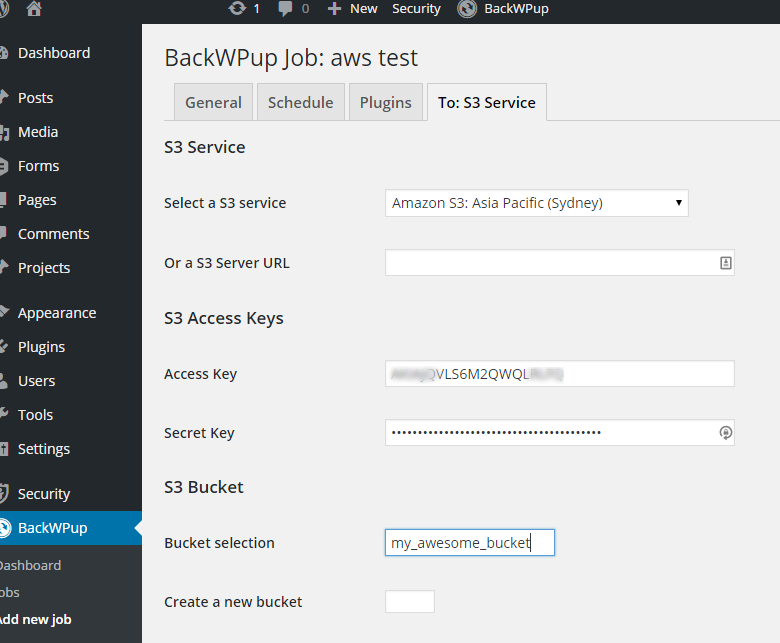
  • On the S3 Service page select your Region and paste in the Access Key and Secret key from before.
  • Type in your bucket name and path to store the backups. It should match the IAM Policy Document

s3-plugin-cfg

Save your settings and run the job.

The plugin logs will let you know if it worked.

A few notes

  • The IAM Policy allows all S3 actions on the given S3 path. I was not able to get this plugin to work with more restrictive permissions.
  • The new S3 Standard-IA class is good for these backups. The storage cost is cheaper than the Standard class without sacrificing redundancy as with Reduced Redundancy Storage. The downside is that downloads of these objects are more expensive.
  • Remember to check your backups periodically